Welcome to my shop!
Please note the following before and after purchase:
1. The device only supports 2.4G Wifi, not 5G.Not support 24 hours recording.
2. Long press the button on the monitor for 6 seconds will reset the device, do not press and hold the monitor button when the device is connected to WIFI. This will cause the device to disconnect. You can check the FAQ at the bottom of the details to solve it.
3. If you encounter other problems when connecting your device, you can check the FAQ at the bottom of the details. Happy shopping!
After receiving the goods, please note:
1,you need to connect the camera and the monitor for the device to work properly (display screen and indicator light on).
2,The basic features described in the product details are free to use. Additional app features (cloud storage, AI sentinel, call alerts, SMS alerts) require extra payment, while the device itself comes with a free detection notification feature (you just need to allow the app to send detection notifications to your phone when installing it).
Funciton:
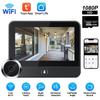
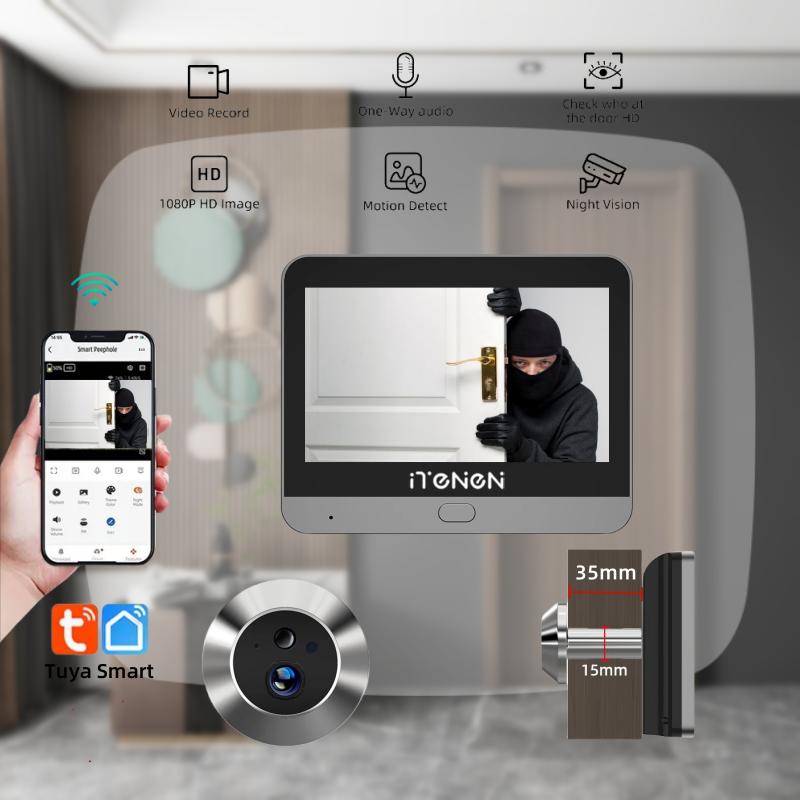
*4.3 inch high-definition LCD
*3MP image ultra-Low Power Consumption Design
*Quick access via app (automatically wakes up within 3 seconds)
*Respond to users access demands within 1 second
*1pcs Infrared filter (no red light),Support one-way audio
*APPsupport iOS&Android,Tuya Smart/Smart Life
*PIR Motion Detect Alarm
*Cloud Storage Function
*Support max 128GB TF card(save Video recording)
*Built-in Lithium Battery and Easy Charged by Type C
*Easy Installation (no need any cable),just Wifi(2.4GHz) connection
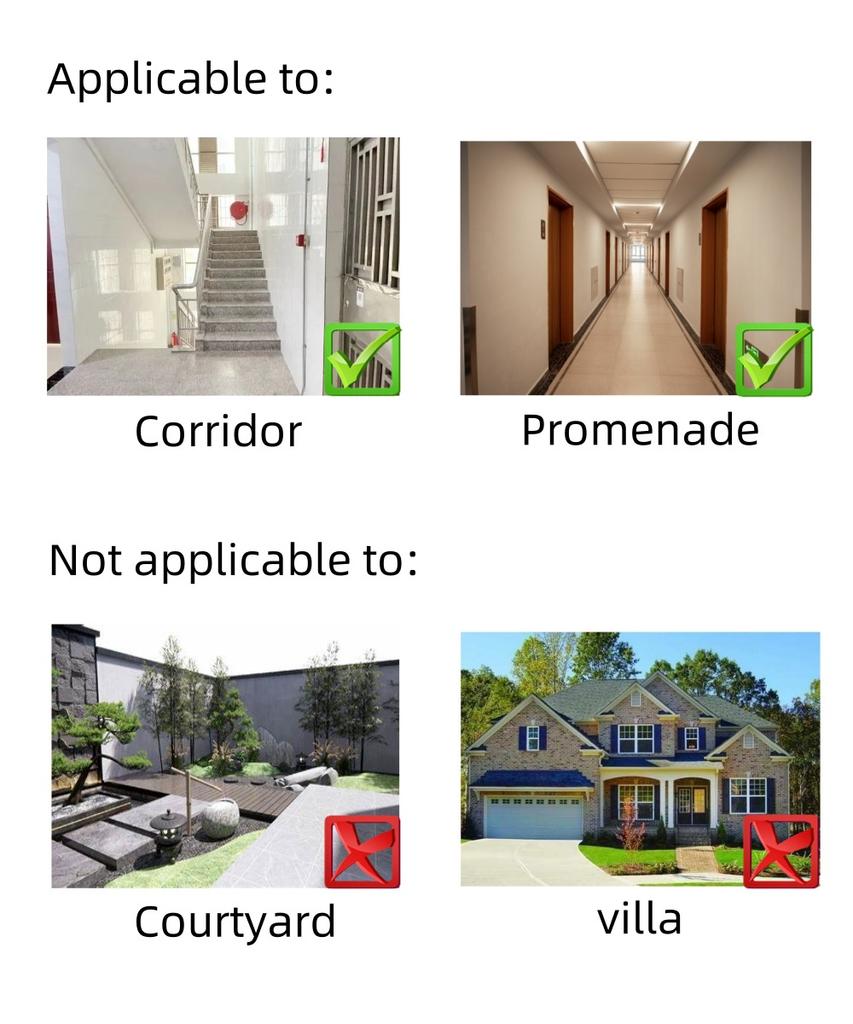
It is suitable for indoor environments such as apartment buildings, and is not recommended for outdoor scenes such as courtyards, where purple colour aberration will appear in the sun.
Steps to connect to WIFI:
1,Add Device--Camera&Lock--Smart doorbell(Please don't choose "Smart doorbell Dual Band).
2,Select 2.4G WIFI and enter the WIFI password.
3,After the device successfully scans the QR code, it will play a voice prompt. Once you hear the voice, you need to click 'Heard the voice prompt' below the QR code in the app, and the device will start connecting to WiFi.
FAQ
1. The device cannot connect to WIFI
W: The second step to add a device,Please select the "Smart Doorbell" option, not the "Smart Doorbell" option with "Dual band".
2. The device cannot scan the QR code of the mobile phone to connect to WIFI
W:Please note that the QR code behind the device cannot add the device, please follow the instructions to add it.
1.Please check if your WIFI password is correct.
2.Aim the QR code generated on your mobile phone at the camera, and after hearing the voice broadcast, please click "Hear the voice broadcast" on your phone to enter the device connection.
3.The indicator on the monitor keeps flashing, please press and hold the button on the monitor for 6 seconds to reset the device, and then add it again.
3. The device is disconnected after a few minutes of connection
W: The device may have been reset in the connected state (do not press and hold the monitor button when viewing the display)
1. Remove the device from your phone
2. press the button on the monitor for 6 seconds, reset the device
3. add the device again
4. Trigger motion detection notification but no video
W: Please go to Settings in the upper right corner of the viewing screen, find the Detection Alarm setting, and turn off the human filter.
Feature: Photograph
Itercom: No
Certification: CE
High-concerned chemical: None
Origin: Mainland China
Power: Dry battery
Smart home platform: Tuya
Brand Name: iTenen
Display: Color
Item Type: PeepHole
Alarm: No




 Возврат по недоставке